Checkout Attempts
Plan: Free (view only) · Starter and above (actions)
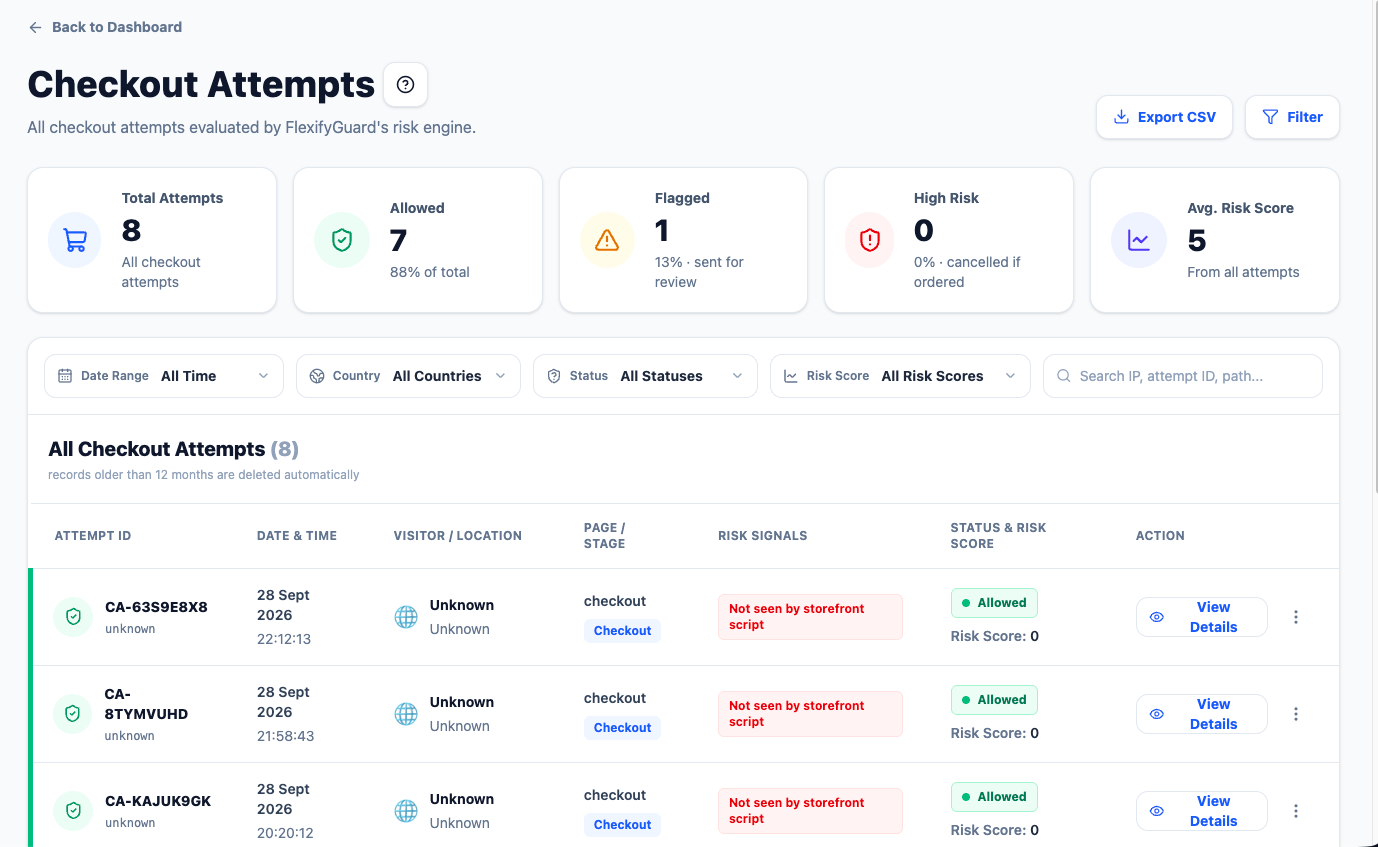 Checkout Attempts list with the detail panel and signals
Every checkout FlexifyGuard has seen, from two sources:
- The storefront script, when a visitor clicks Checkout on your Online Store.
- Shopify's checkout webhook, for every checkout Shopify creates — including bots that skip the storefront.
If both record the same checkout, only one entry is kept.
Statuses
FlexifyGuard does not stop the checkout click itself (Shopify does not allow that). The status describes what FlexifyGuard concluded and what it will do:
| Status | Meaning |
|---|---|
| Allowed | Low risk. Nothing further. |
| Flagged | Elevated risk. If it becomes an order, it goes to review. |
| High Risk | Score 85+. If it becomes an order, it is cancelled automatically (with auto-cancel on) or recommended for cancellation. |
Signals you may see
- VPN / Proxy, Datacenter IP, Tor exit node
- Checkout velocity high, Card testing pattern (5+ checkouts from one IP in 30 minutes)
- Billing / shipping country mismatch
- IP on blocklist, Email on blocklist, Flagged by network
- Not seen by storefront script — the checkout came through Shopify's webhook only. This happens for bots, but also for real customers who declined cookie consent, use an ad blocker, or used a checkout button the script does not hook. On its own it is not a sign of fraud.
Actions (Starter and above)
- Mark as Safe — caps future risk for that device at 5. Available only when the attempt has a device fingerprint.
- Add to Watch List — future checkouts from that device score at least 45. Same requirement.
- Block IP — blocks the IP for this store (see IP & Country Control).
The list shows the latest 100 attempts; the cards show real totals. Records older than your retention period are deleted automatically.
Step by step: handling a suspicious checkout
- Open Checkout Attempts and filter by High Risk.
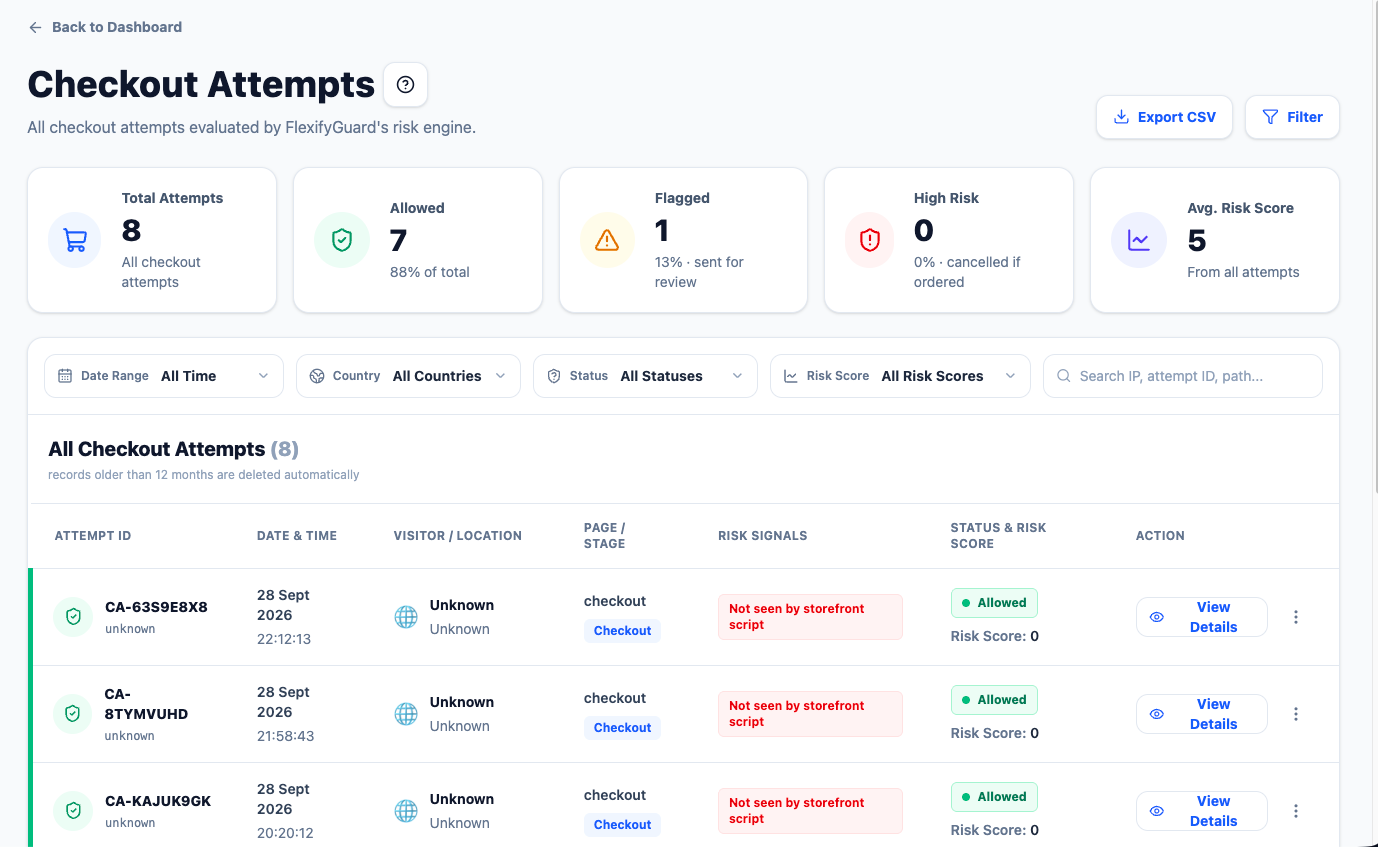 The Checkout Attempts list; use the Status filter to show only High Risk
- Click an attempt and read the Signals; that is why it scored the way it did.
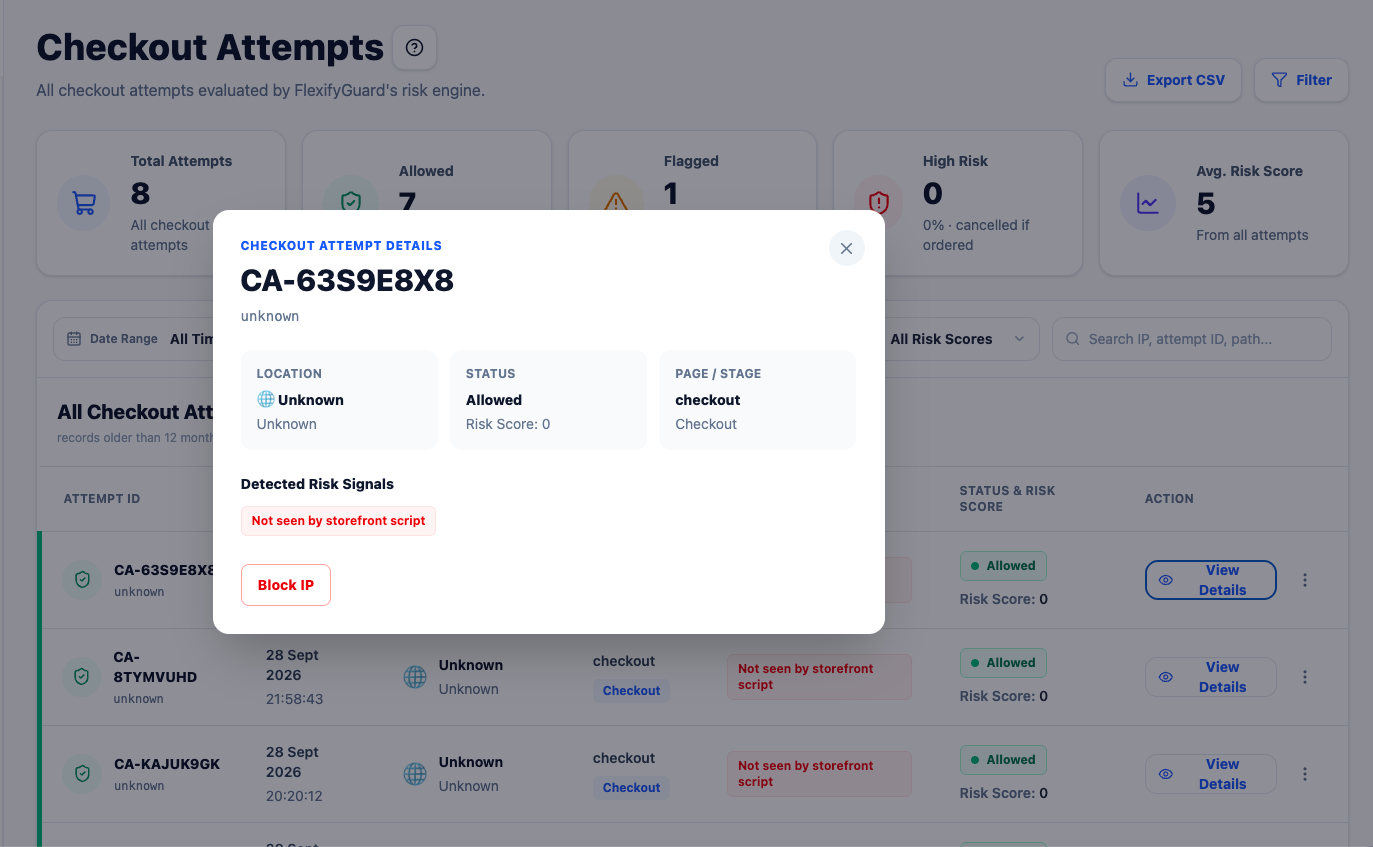 An attempt opened: location, status, page and detected signals
- Pick an action:
- Block IP: stops that IP on your storefront, at checkout, and cancels any order it places.
- Add to Watch List: future checkouts from that device score at least 45.
- Mark as Safe: for a customer you know; future risk for that device is capped at 5.
- Watch List and Mark as Safe appear only when the attempt has a device fingerprint (checkouts recorded through Shopify's webhook alone do not).